One hub. All your work, in one place.
Tasks, terminals, AI sessions, docs and git from every project, together in one place that keeps itself up to date. And with extensions, it becomes whatever your work needs.
Tasks
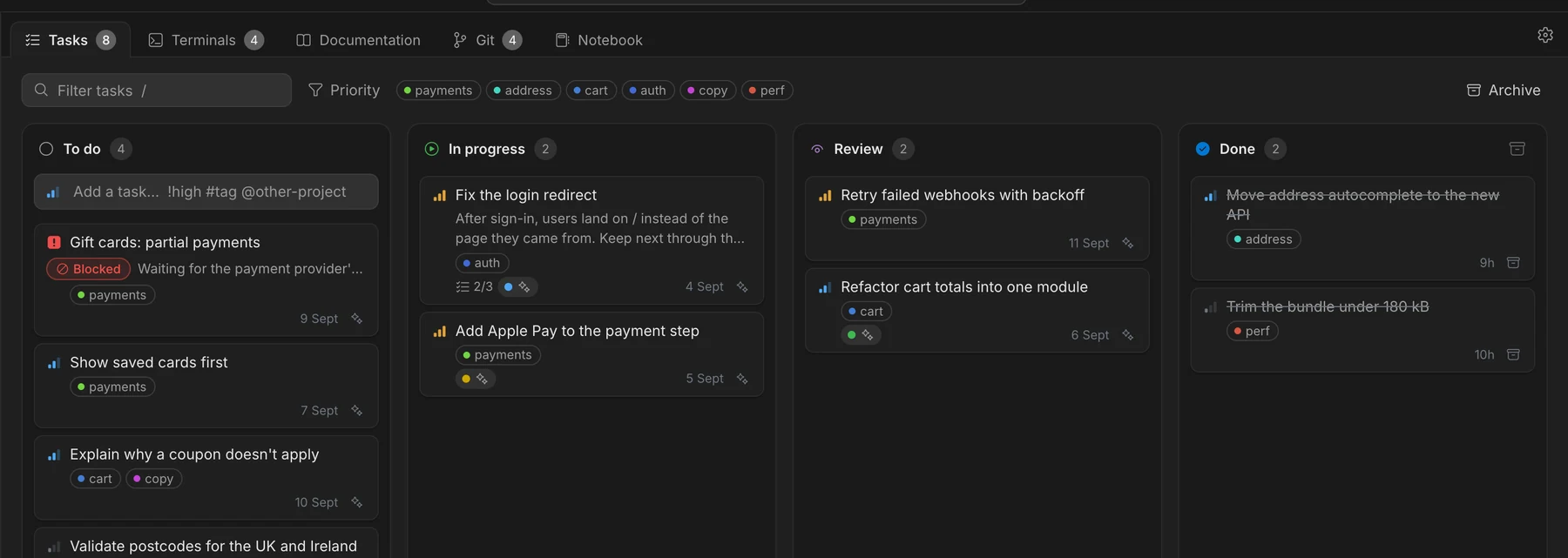
Every task in its place.
Each project gets its own board, saved in its repository as plain Markdown. It stays in sync with your team through git, and updates by itself whenever a task changes, wherever it changed.
- Add a task in one line:
Fix the redirect !high #auth - One file per task, so no merge conflicts
- Priorities, tags, checklists and filters
- Blocked tasks with their reason, Jira tickets, and an archive for what's done
Delegation
Delegate a task without losing track of it.
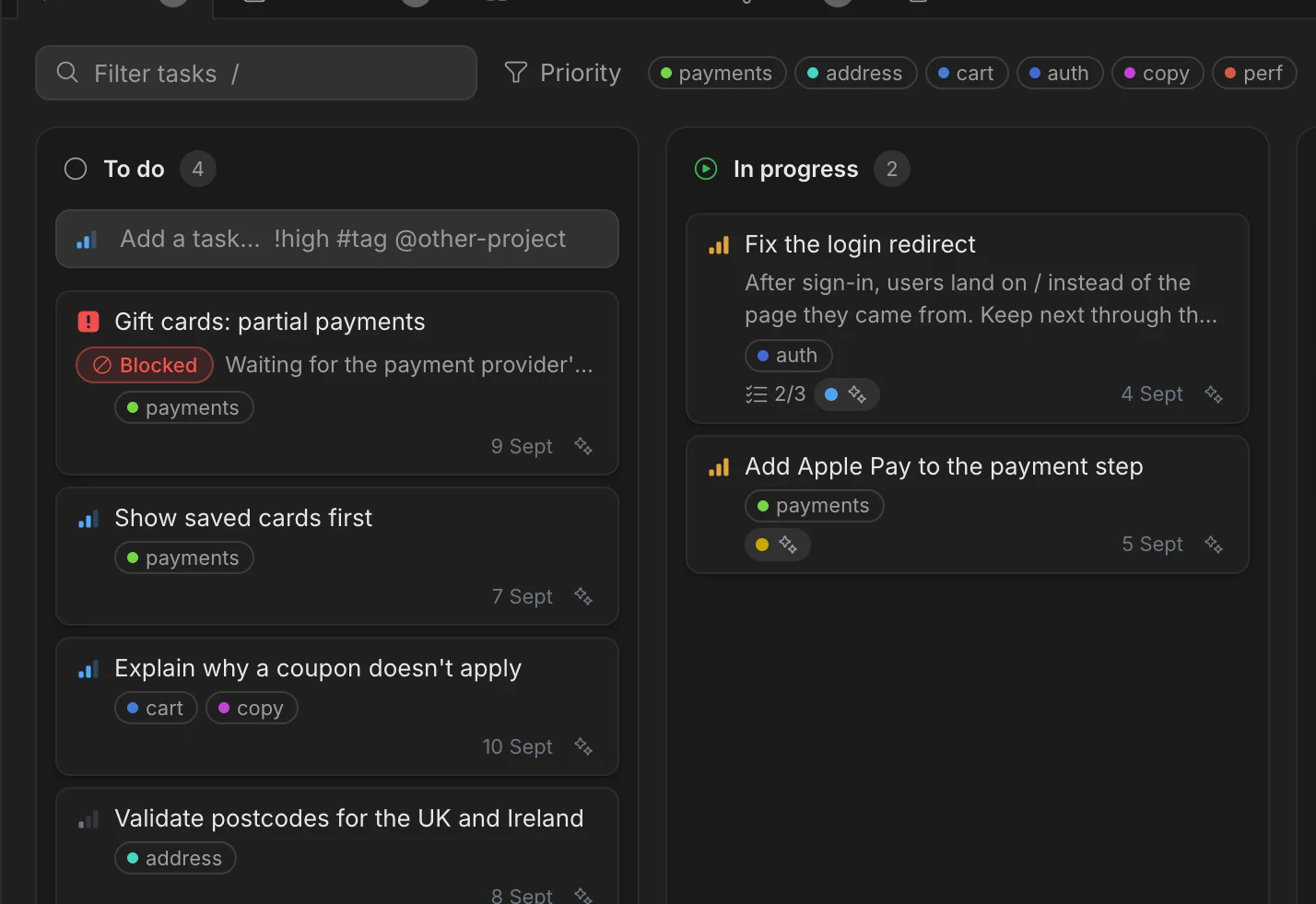
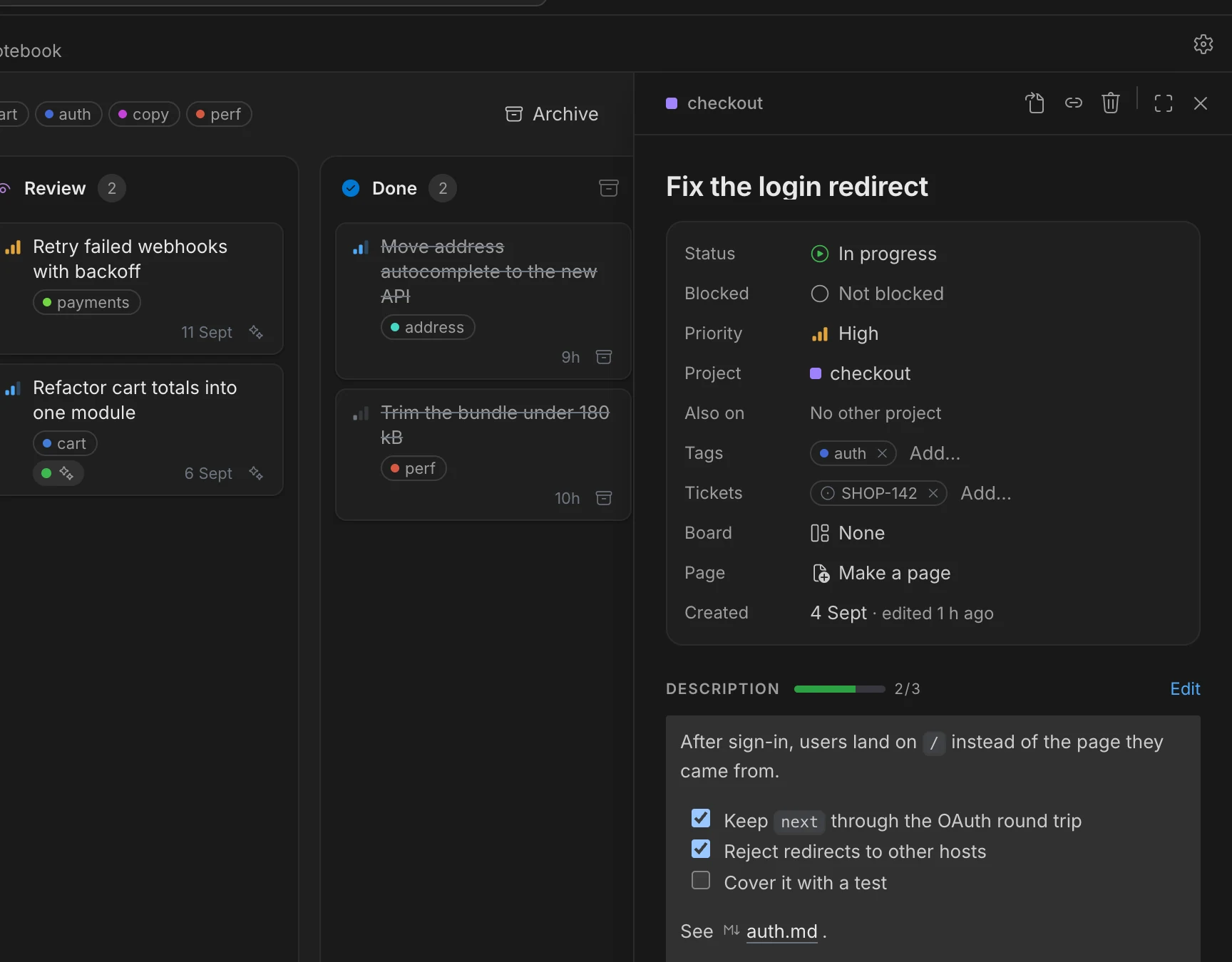
Hand a task to your AI assistant in one click. Octopus briefs it with the task, its checklist and every doc it links to, then moves the task to In progress and on to Review when the work is done. The board always shows where things really stand.
- Linked docs, pages and tasks go into the brief
- Jira tickets on the task, read before the work starts
- Every session, recorded on the task
Sessions
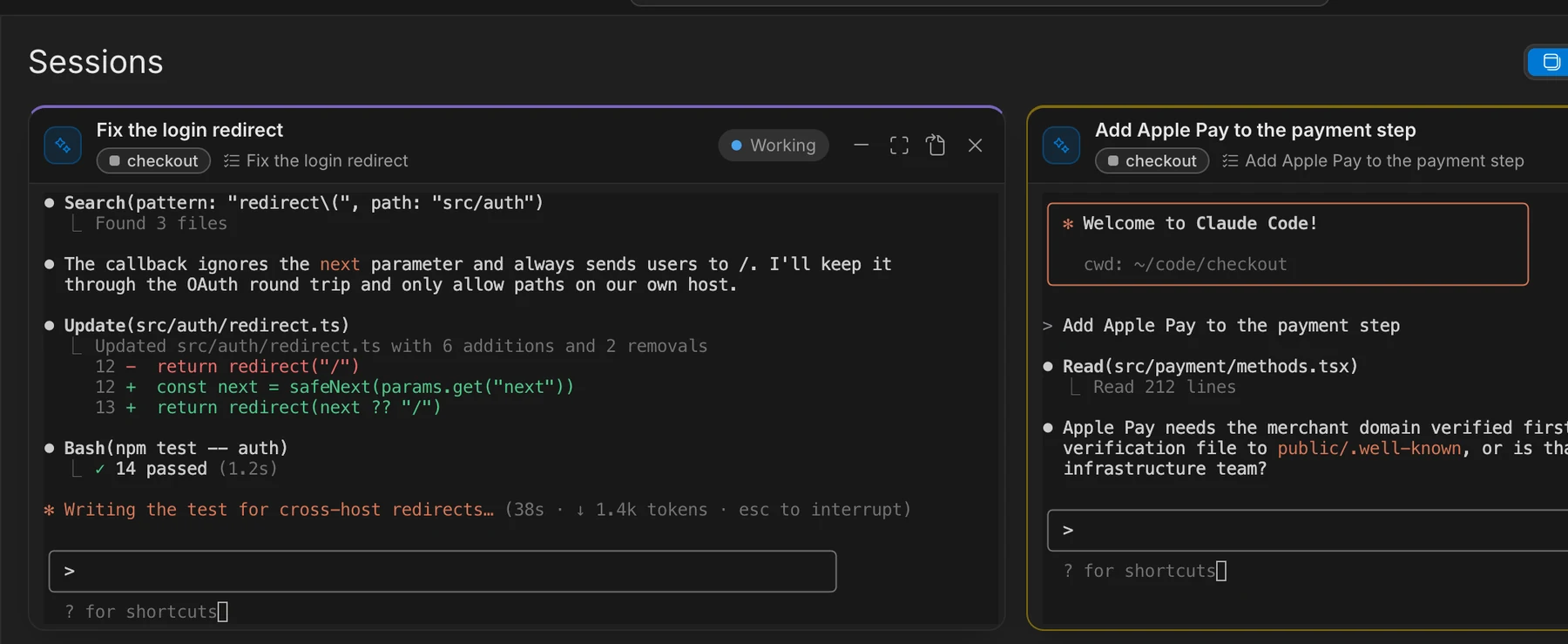
Every terminal accounted for.
All your sessions and shells, across every project, in one view. Each shows its state, so you always know what's running, what's finished and what's waiting for you.
- Working
- Waiting for you
- Idle
Terminals open in Terminal, iTerm2, VS Code, Cursor, Warp or Ghostty show up too, filed under the right project.
Documentation
Docs that stay next to the work.
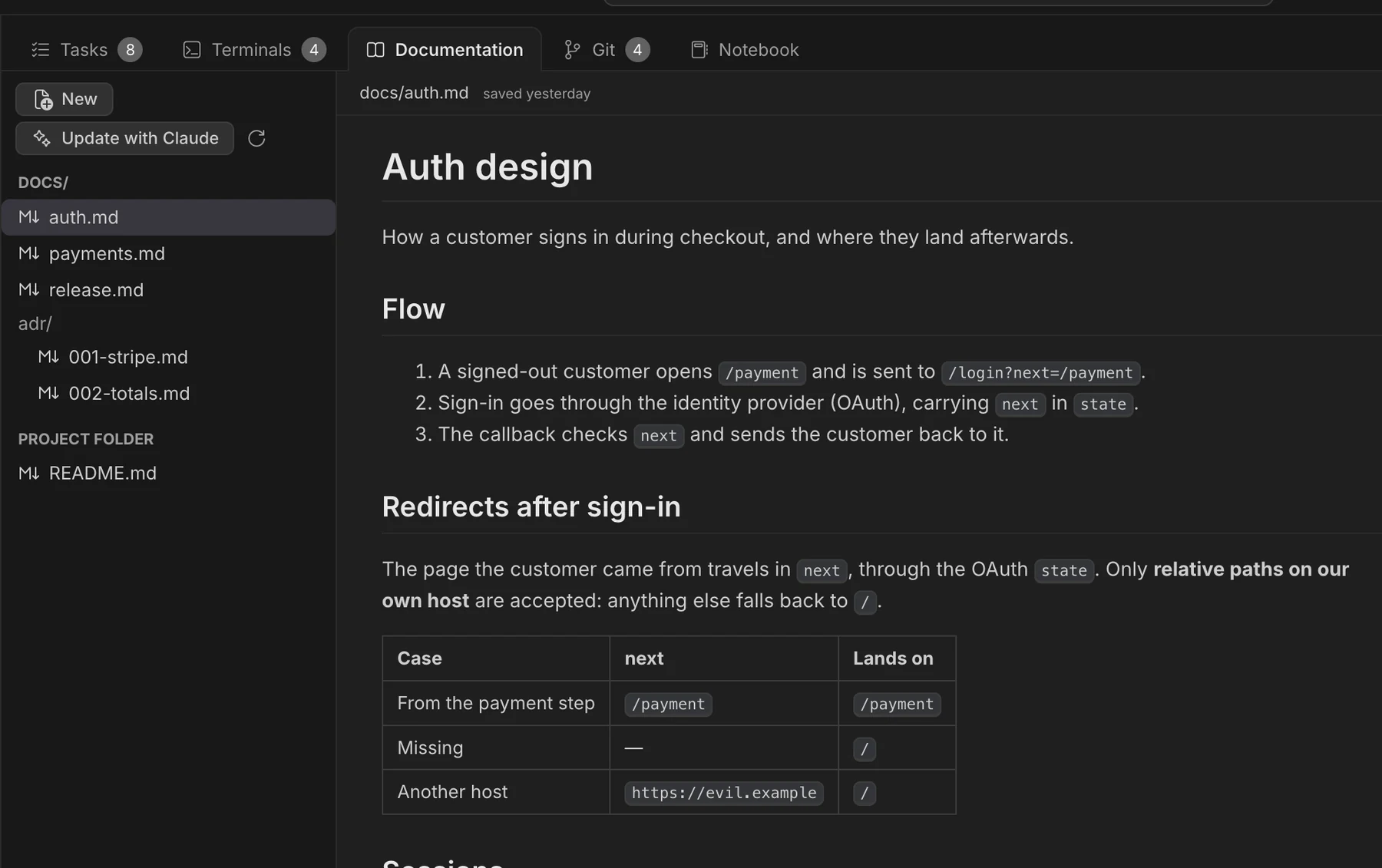
The Markdown in your repository, one tab away from tasks and terminals. Link a doc to a task and it's always at hand, for you and for the AI working on it. With Mido installed you get its full editor, with diagrams, math and comments.
- Read, edit or both side by side
- Rename a document and every link to it follows
Works with Mido
Install Mido, and Octopus's docs get its whole editor.
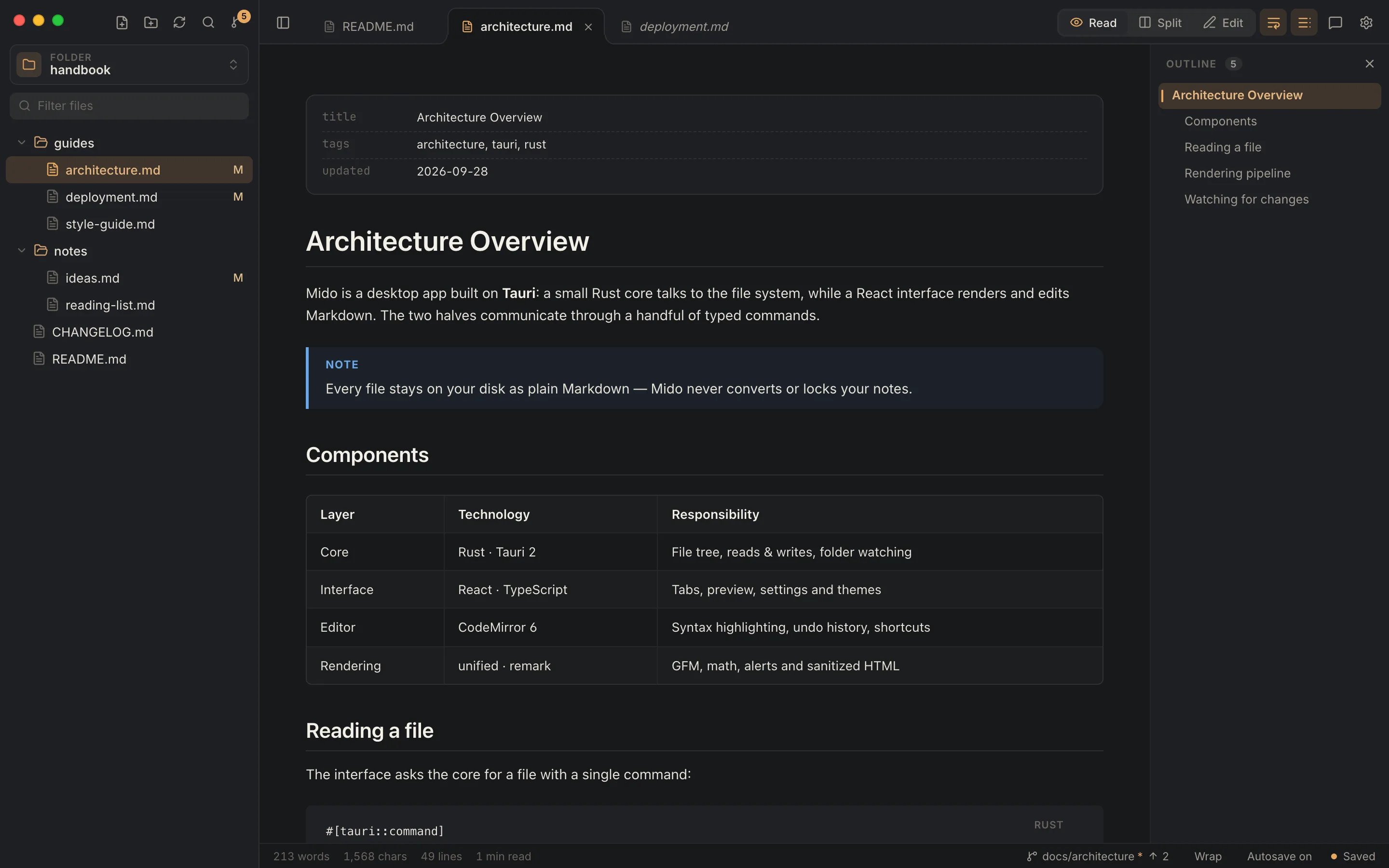
Octopus is modular: other apps by the same developer plug into it. Mido is a Markdown reader and editor for the Mac. Install it, and Octopus's Documentation tab runs Mido inside it, on the project's own folder. Nothing to set up: Octopus finds it by itself.
- Diagrams and mathMermaid diagrams, KaTeX formulas, GitHub alerts and highlighted code, rendered as you type.
- Comments on the textThreads on any passage, signed with your git name and shared with the repository.
- Find your wayTabs, an outline of every heading, and search across all of the project's docs.
- Export and printA standalone HTML page, or a PDF from the print panel.
- Always up to dateUpdate Mido and Octopus gets the new version too. It follows Octopus's theme, and Open in Mido takes the project to the app.
Free for macOS. Without Mido, or with it turned off in Settings, Octopus uses its built-in editor.
Git and review
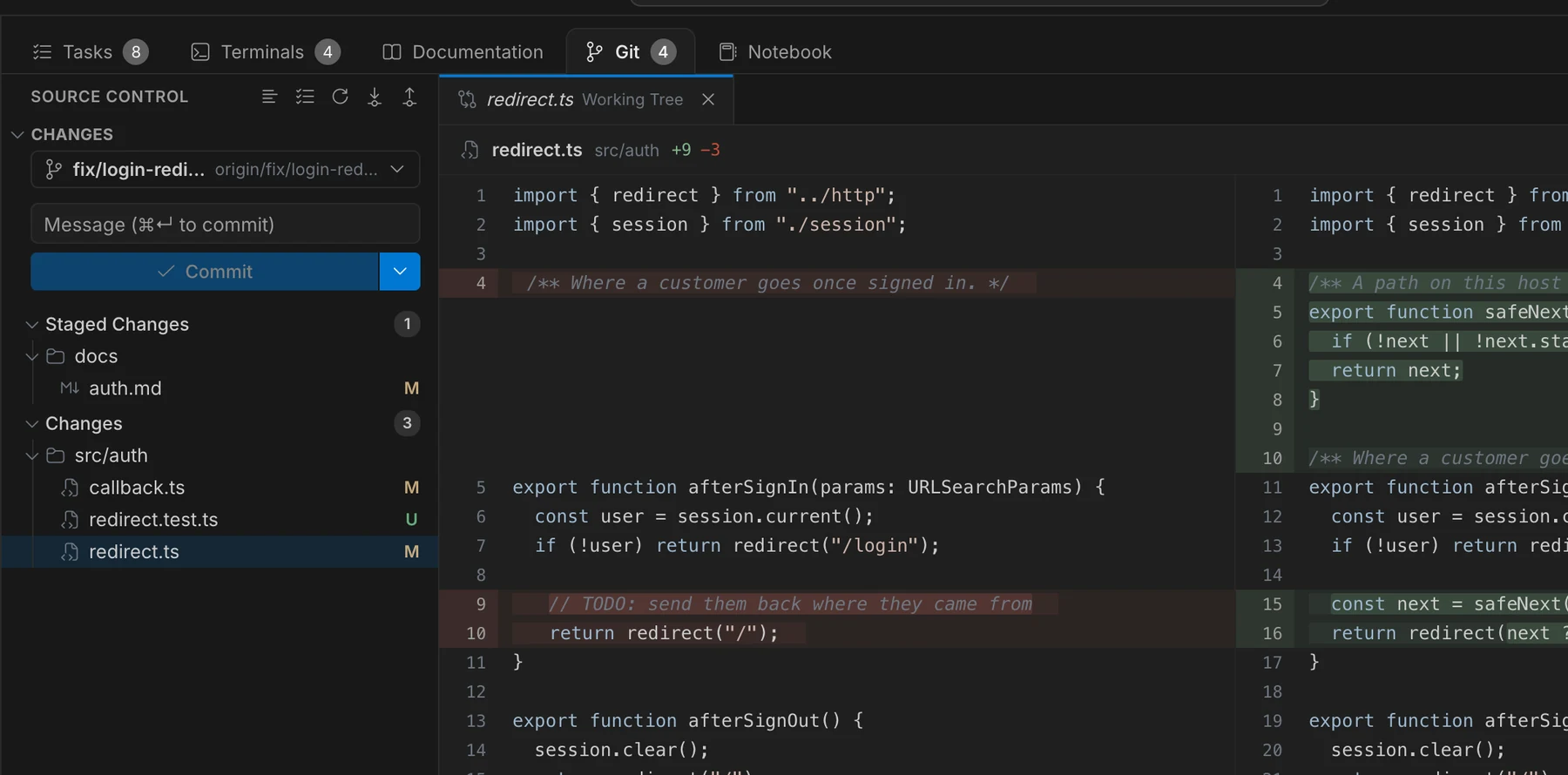
See every change before it ships.
Every changed file, side by side, then stage, commit and push from the same window. The review page remembers which files you've already read, so nothing slips through.
- Commit, push, pull, merge and resolve conflicts
- Branches and history at a glance
Notebooks
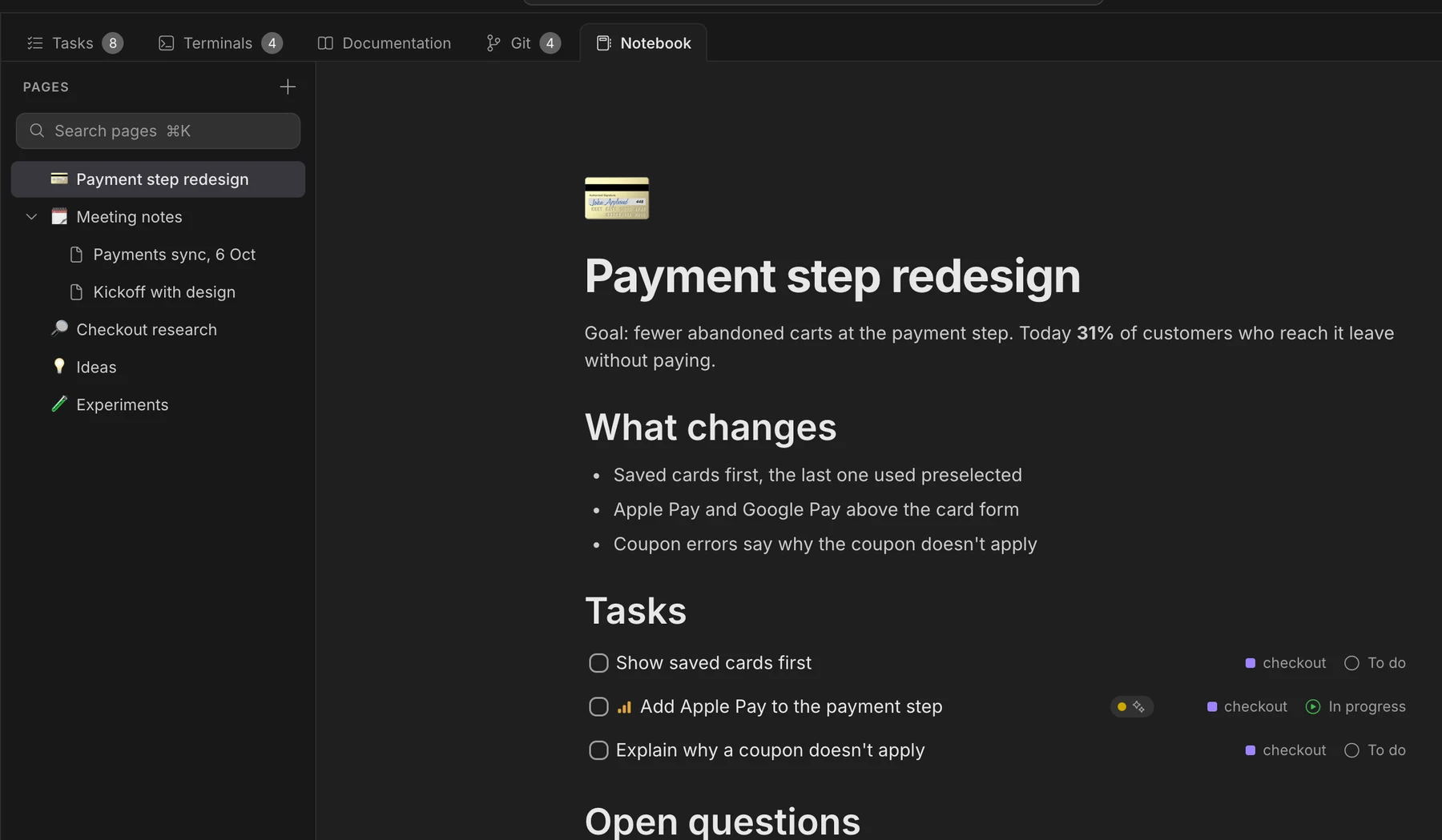
Specs, notes and plans, connected to the work.
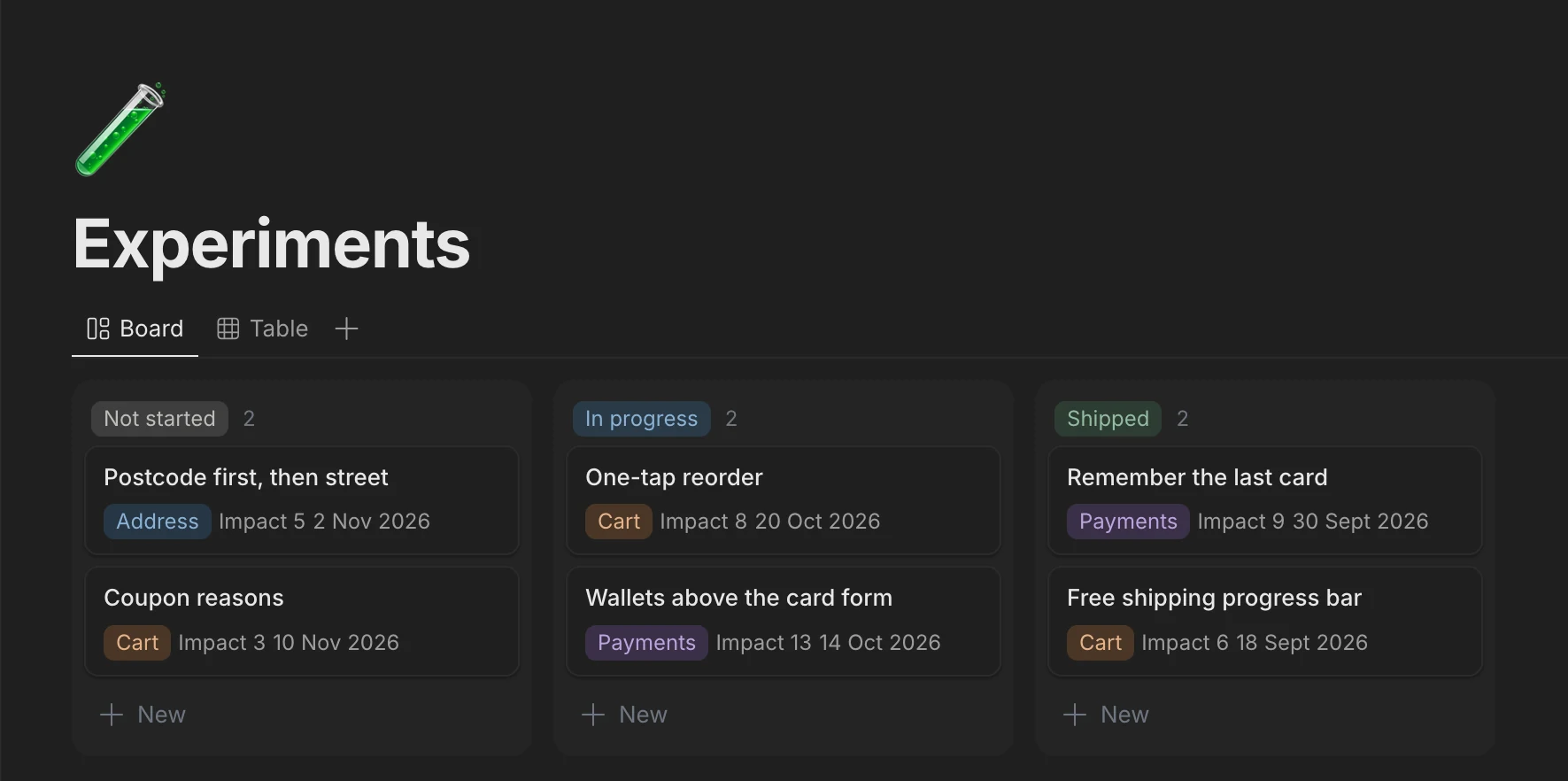
Write the spec where the tasks are. A to-do on a page is a real task on the board, kept in sync both ways, and databases organize everything else with table, board, list and calendar views.
- Slash commands, code blocks, callouts and links
- Relations, rollups and formulas in databases
Priorities
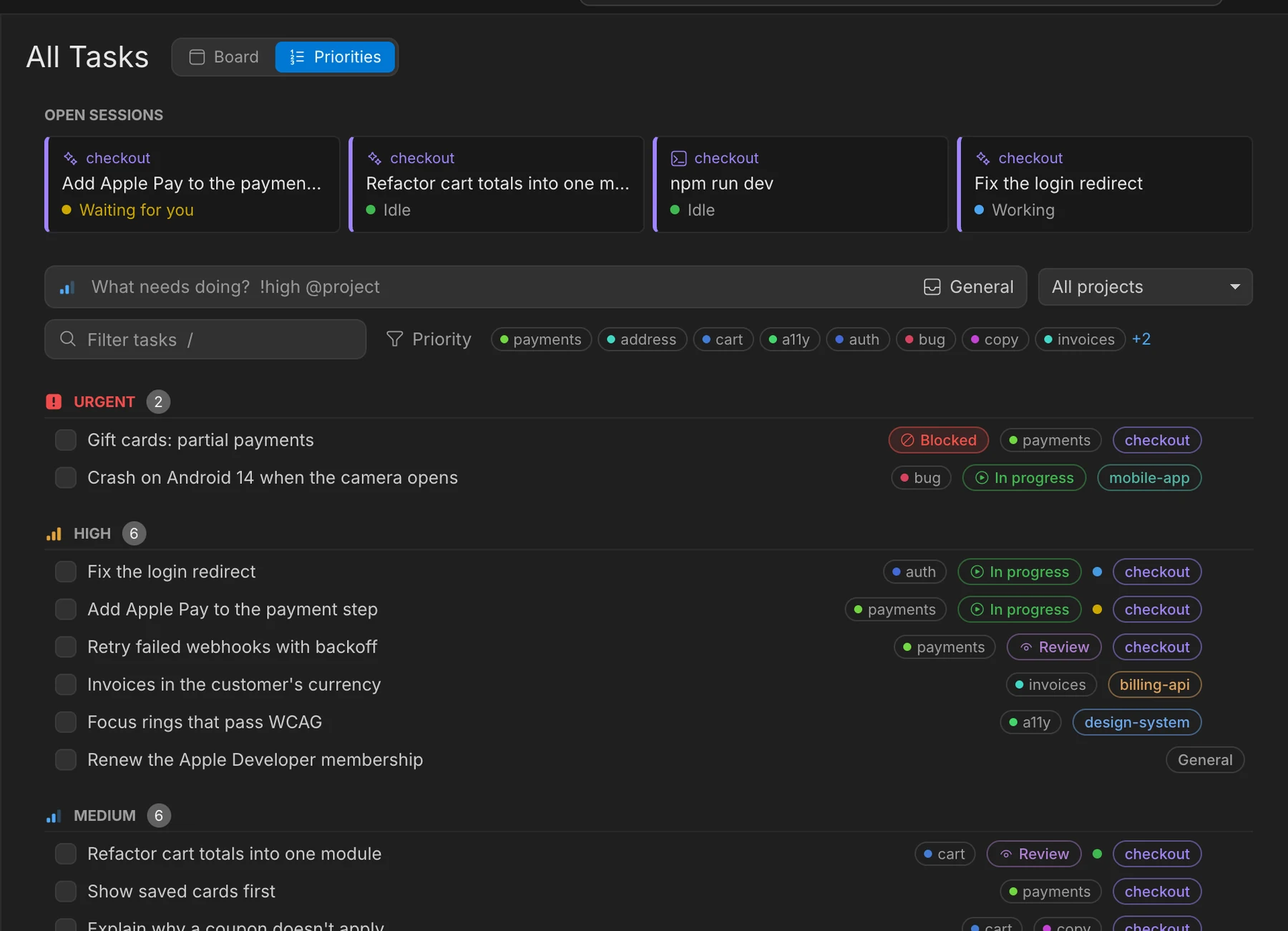
One list of what's next, across every project.
Every open task from every project, sorted by priority, with what's running on top. Start your day here and decide what comes next. Tasks that belong to no project have a place here too.
Small things that keep it all in order.
- Search everything
- Find any project, task, page, document or session from one box: ⌘⇧F.
- Work and personal, kept apart
- Use a different AI account per project. Every session starts and resumes in the right one by itself.
- Pick up where you left off
- Your sessions come back after a restart, conversations included.
- Terminals in their own window
- Pop a session out to its own window. Close the window and it goes back where it was.
- Links between everything
- Tasks, pages and docs link to each other with plain Markdown, and each one lists what links back to it.
- Your sites, next to the work
- An extension can bring a website into Octopus, Slack or your dashboards, with its unread count on the side.
- Extensions in their own window
- Keep an extension's page beside other apps, pinned on top if you like, or as a live item in the Mac's menu bar.
- Themes
- Dark and Light Modern, GitHub, Dracula, Nord and Solarized, or follow macOS.
Extensions
Bring the rest of your tools into the hub.
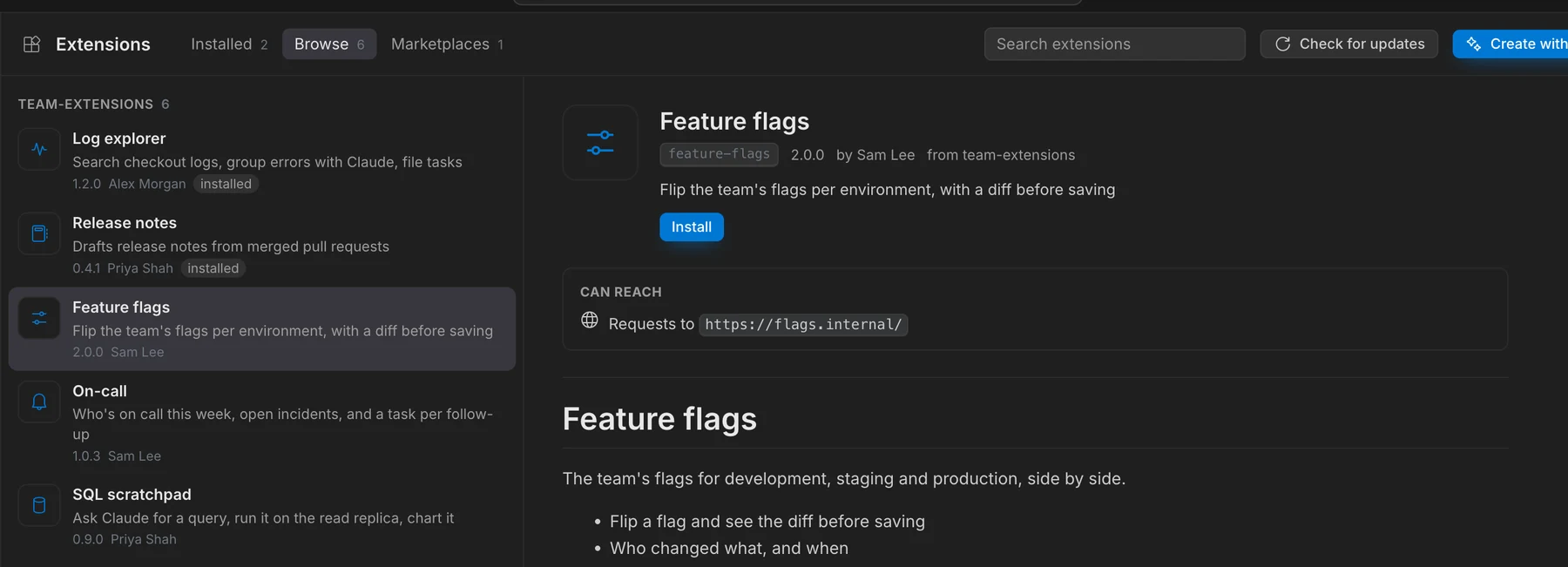
Need your logs, an internal API or a standup summary next to your tasks? Describe it, and the AI builds it as a new section of Octopus while you watch it take shape.
-
Describe it
Say what you need. The AI writes it next to a live preview, and you refine it by asking.
-
Approve what it can reach
An extension only reaches the sites, tasks or docs it asks for, and only after you say yes.
-
Share with your team
Publish it to a marketplace, any git repository. Teammates install it in one click and get every update.
Public and private marketplaces, side by side
Add as many as you need. Each keeps its own extensions and updates.
github.com/serafo27/octopus-extensions-marketplaceOctopus's own extensions, open to everyone. It's added the first time Octopus opens: install what you like in one click.
- Calendar
- Daily
- Messaging
- JSON Explorer
- Pets
gitlab.your-company.com/team/…Your team's own tools, reached with your git access. They never leave it.
- Feature flags
- SQL scratchpad
- On call
What you need
- A Mac with Apple Silicon or Intel
- Claude Code, to delegate tasks to AI
- Mido, optional, for the full documentation editor
Opening it the first time
Octopus isn't notarized by Apple yet, so macOS asks once. Open System Settings › Privacy & Security and choose Open Anyway, or run in Terminal:
xattr -dr com.apple.quarantine /Applications/Octopus.appEarlier versions
More versions
Support the work
Help keep this and the other apps going.
Octopus, Mido and the rest of my apps are all free, with no ads and no accounts. I build them in my spare time. If they make your work easier, your support pays for their development, maintenance and updates.
Any help is warmly appreciated. Thank you!